
A timer people actually start.
One window, one button, and a break that does not need a workaround.
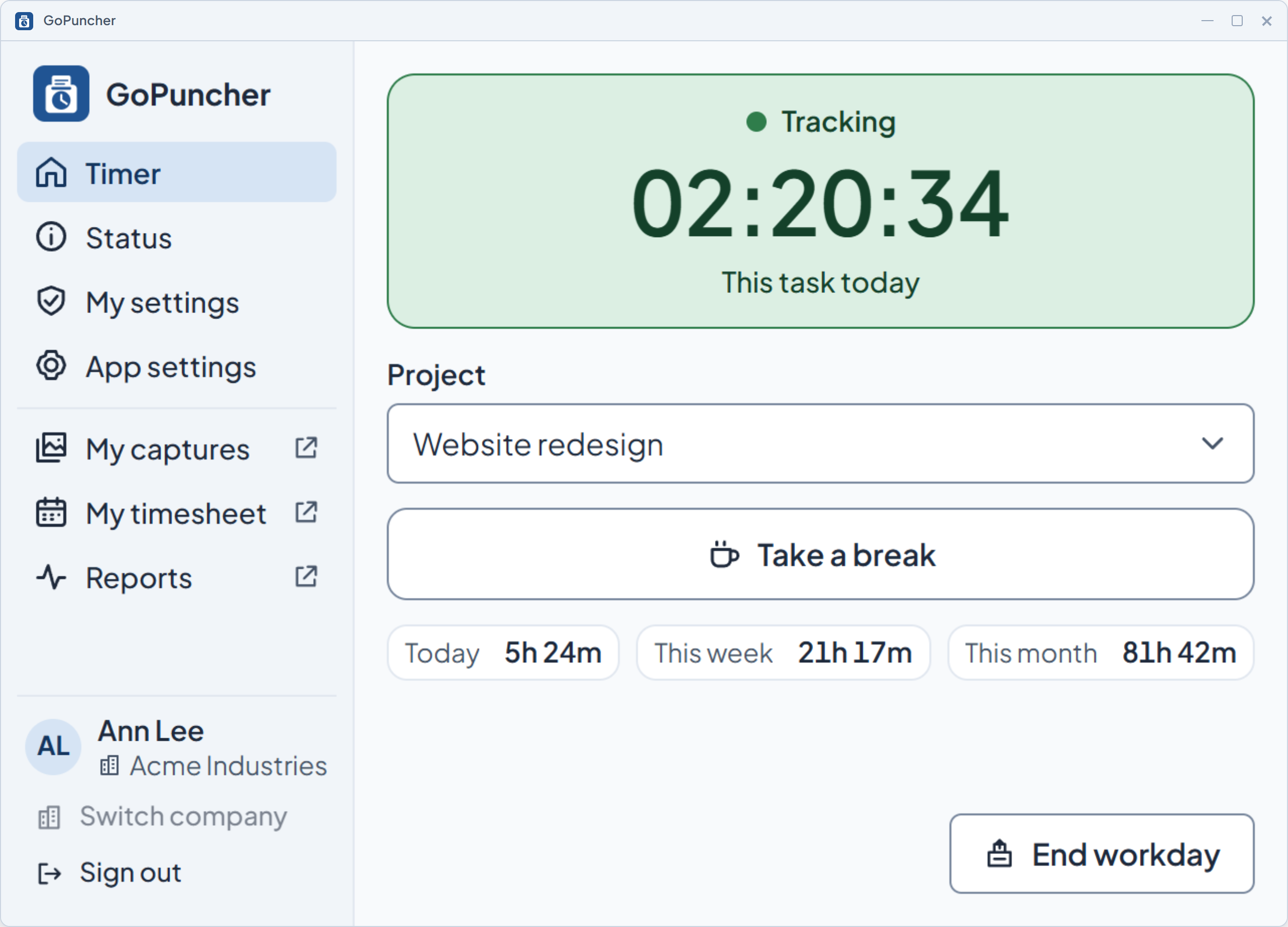
What it does
- The employee starts the timer themselves. It never starts on its own, and nothing is collected until it runs.
- Every start is tied to a project picked from a list, and the app remembers the last one.
- One action at a time: Start, then Take a break, then Resume. End workday closes it out.
- A break is not counted as work time, and reports show it separately from inactivity.
- If there is no keyboard or mouse activity for the idle timeout, tracking pauses and that time is not counted. When the employee is back, the app shows how long they were away and asks them to resume.
- Away for more than an hour, with the machine idle, locked or asleep? The timer stops at the moment of the last activity.
- Closing the window does not stop the timer: the app stays in the tray.
How you set it up
- Idle timeout is set for the company, a team or one person.
- Manual time is a setting too. When it is on, an employee can request time the tracker didn't record; it counts only after a manager or admin approves it, and it is marked as manual.
- Every settings change is recorded in the settings log.
What the employee sees
- The current state in the app window, Tracking, On Break, Idle or Stopped, and the same state on the tray icon and on the bar.
- Today's time, with totals for this week and this month.
- Time they didn't mean to track, which they can delete themselves, in full or in part.
See it on your own numbers.
Half an hour, your questions, and the real panel on screen. No slide deck.